

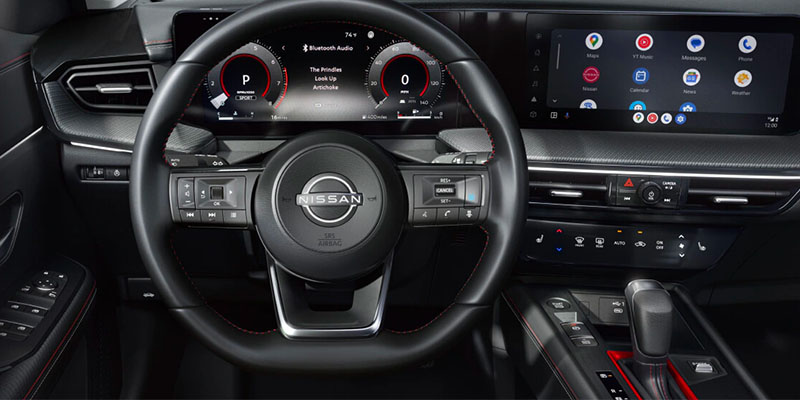
Modern Nissan technology is built around clarity, simplicity, and a quiet confidence that makes everyday driving feel a little more composed. Whether you’re pairing via Nissan Bluetooth or bringing your apps to life through Apple CarPlay®, these features help you stay focused on the drive while keeping the essentials close at hand. For drivers in Winter Haven, FL, learning how to connect an iPhone or Android device to a Nissan turns the cabin into a more intuitive and useful space.
Why Nissan Technology Matters
Nissan’s connectivity systems exist to reduce friction—fewer cables, fewer taps, fewer chances for distraction. Once everything is paired, the cabin becomes much calmer. Calls, music, navigation, and messages arrive in an orderly way through the infotainment display, and you remain firmly in command. The Nissan phone connection layout is deliberately simple, giving you the tools you need without clutter or complication, an advantage when moving through Winter Haven traffic or navigating unfamiliar routes.
Step-by-Step Guide: Nissan Bluetooth Setup
Pairing a device through Bluetooth in a Nissan is intentionally straightforward, built around a few clean steps:
- Activate Bluetooth on your smartphone and set it to discoverable.
- Open the “Settings” menu on your Nissan’s infotainment screen and select “Bluetooth.”
- Choose “Add New Device” and wait for your phone to appear.
- Select your phone, confirm the pairing code on both screens, and complete the match.
- Once connected, hands-free calling and audio streaming become available immediately.
From that moment on, your device integrates into the car without fuss, making everyday trips or weekend drives feel more seamless.
Apple CarPlay® Setup: Enhancing Your Drive
Connecting an iPhone through Apple CarPlay® brings a more integrated layout to the touchscreen. Navigation, music, messages, and voice control sit within easy reach. Setup is simple:
- Plug your iPhone into the USB port with a certified cable.
- When the prompt appears on the infotainment screen, select “Apple CarPlay®.”
- Approve the connection on your iPhone and allow the interface to activate.
Once linked, Siri handles the heavy lifting—calls, texts, route guidance, and audio—while you stay focused on the road ahead. For Winter Haven drivers, where traffic patterns and weather can shift quickly, this kind of hands-free clarity becomes genuinely useful.
Troubleshooting Common Connection Issues
When pairing doesn’t behave as expected, small adjustments usually restore order:
- Confirm your phone’s software is current.
- Restart your phone and the Nissan system to clear stalled connections.
- Make sure no other devices are competing for a Bluetooth link.
If issues continue, a more detailed walkthrough is available in the owner’s manual or through local support in Winter Haven.
Visit Hill Nissan for Expert Assistance
Nissan’s connectivity features are engineered to simplify the conversation between driver, car, and device. With Bluetooth pairing, Apple CarPlay® integration, and straightforward troubleshooting steps, staying connected on the road becomes far more intuitive. Drivers in Winter Haven, FL can explore these systems in more detail and receive hands-on support at Hill Nissan.
Connect with us


- 2026 Nissan Apple Car Play
- 2026 Nissan EVs
- 2026 Nissan Frontier
- 2026 Nissan Kicks
- 2026 Nissan Leaf
- 2026 Nissan Rogue
- 2026 Nissan SUV
- 2026 Nissan Technology
- Auto Financing Winter Haven, FL
- Compact Nissan SUV
- Compact SUV Winter Haven, FL
- CPO Cars For Sale Winter Haven, FL
- Florida Nissan Dealer
- Hill Nissan
- Hill Nissan Service
- Hill Nissan Winter Haven, FL
- How to Connect Your iPhone to Your Nissan
- How to Connect Your Phone to Your Nissan
- Lakeland Nissan Dealer
- Lakeland Nissan Service
- New Nissan Frontier
- New Trucks Winter Haven, FL
- Nissan APR Deals Winter Haven, FL
- Nissan APR Lease Winter Haven, FL
- Nissan CPO Benefits
- Nissan CPO Cars For Sale Winter Haven, FL
- Nissan Dealer Winter Haven, FL
- Nissan Finance Center Winter Haven, FL
- Nissan Frontier Winter Haven, FL
- Nissan Kicks For Sale Winter Haven, FL
- Nissan Leaf Winter Haven, FL
- Nissan Loans Winter Haven, FL
- Nissan Rogue Lakeland, FL
- Nissan Rogue Winter Haven, FL
- Used Car Loans Winter Haven, FL
- Used Nissan Dealer Winter Haven, FL